
If you run a screen printing shop and you’re trying to sell custom orders on Shopify, you already know the problem: your pricing isn’t simple. It depends on how many shirts someone orders, how many ink colors they want, how many print locations they need, and what type of garment they’re ordering.
A screen printing shop is a custom apparel business that transfers designs onto t-shirts, hoodies, and other garments using a stencil-and-ink process — typically fulfilling bulk orders for businesses, schools, sports teams, and event organizers.
A flat price won’t work. A 50-row variant table won’t work either. What you need is a calculator that figures out the right price automatically, right on the product page, as the customer is building their order.
This is exactly what Apippa Custom Price Calculator was built for. Here’s how to set it up for your screen printing store.
Why Screen Printing Pricing Is Uniquely Complex
Most Shopify pricing apps are built for stores that sell fixed products at fixed prices. Screen printing doesn’t work that way.
A typical custom screen printing order includes:
- Quantity breaks — 12 shirts cost more per unit than 144 shirts
- Ink colors — each additional color requires a separate screen setup, adding cost
- Print locations — a front chest print is cheaper than adding a back print and a sleeve
- Garment type — a Gildan 5000 tee costs less than a Next Level fitted, which costs less than a heavyweight fleece
When you try to represent this as Shopify variants, you end up with hundreds of combinations that are impossible to manage and confusing for customers. The variant limit hits fast, and none of the options give you a live price preview while the customer configures their order.
Apippa solves this by letting you build a formula-based calculator directly on your product page — one that calculates the right price in real time based on whatever inputs your customer selects.
What You’ll Build
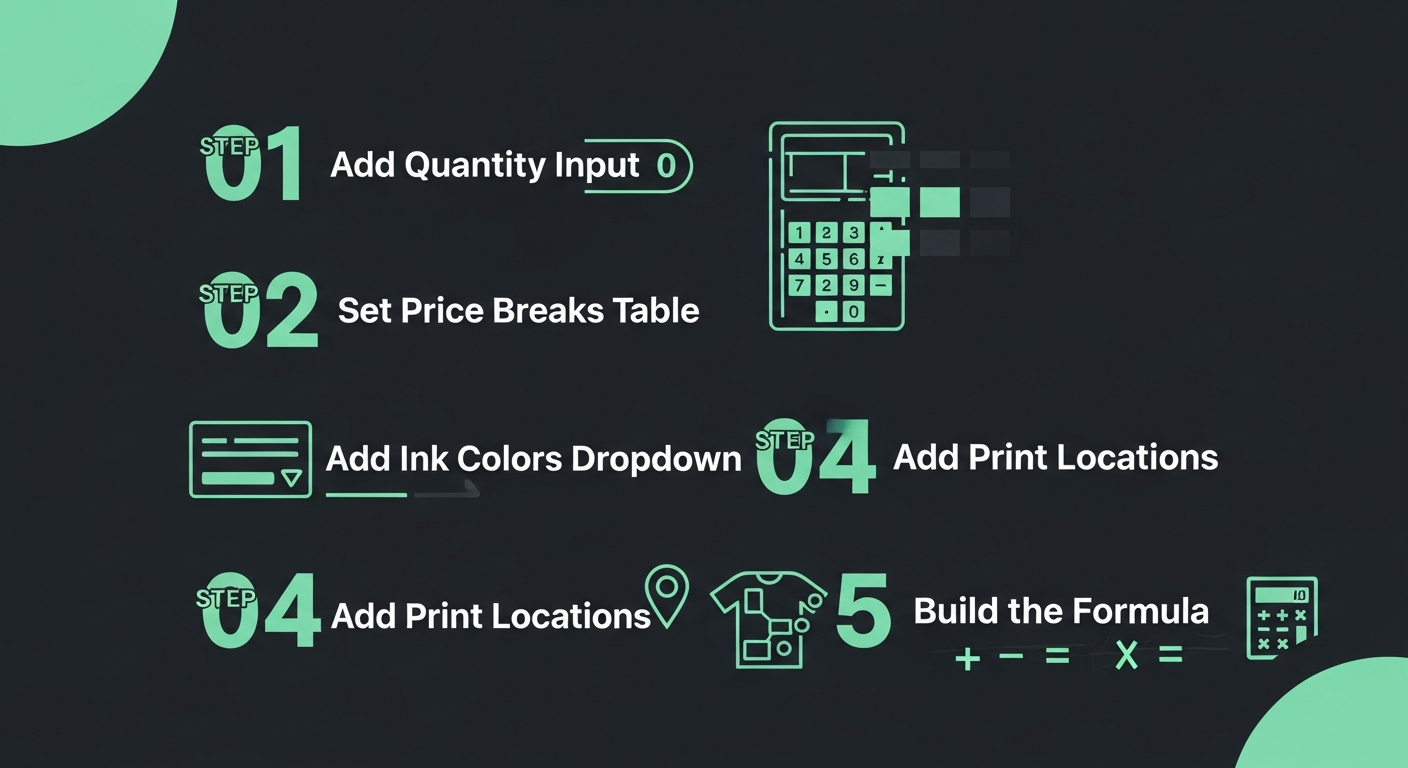
By the end of this walkthrough, your product page will have:
- A quantity input that automatically applies your price breaks
- A dropdown for number of ink colors per location
- A checkbox group for print locations (front, back, sleeve, etc.)
- A live price that updates instantly as the customer configures their order
- A clean add-to-cart that saves all the customization details as line item properties — no variant mess
Step 1: Set Up Your Quantity Input with Price Breaks
Start in the Apippa app and create a new calculator for your product. Add a Number Input field and label it “Quantity.” Set the minimum to your order minimum (typically 12 or 24 for screen printing).
The most powerful feature for screen printing shops is the Data Lookup Table. This lets you define your quantity break pricing exactly as you would in a spreadsheet:
| Quantity Range | Price Per Shirt |
|---|---|
| 12–23 | $18.00 |
| 24–47 | $14.00 |
| 48–95 | $11.00 |
| 96–143 | $9.00 |
| 144+ | $7.50 |
In Apippa, you create this as a lookup table and reference it in your formula. The calculator automatically finds the right per-unit price based on the quantity entered. No if-then logic to write manually — you just build the table.
Step 2: Add Ink Colors
Add a Dropdown field labeled “Number of Ink Colors” with options: 1 Color, 2 Colors, 3 Colors, 4 Colors, 5+ Colors.
Assign a numeric value to each option:
- 1 color = 0 (base price already includes first color)
- 2 colors = 1.50 (additional cost per shirt)
- 3 colors = 3.00
- 4 colors = 4.50
- 5+ colors = 6.00
These values become variables in your formula. Apippa lets you name them anything — use something clear like colorUpcharge.
Step 3: Add Print Locations
Add a Checkbox Group field labeled “Print Locations.” Include options like:
- Front Chest (included in base price — value: 0)
- Full Back (+$2.50/shirt — value: 2.50)
- Left Sleeve (+$1.50/shirt — value: 1.50)
- Right Sleeve (+$1.50/shirt — value: 1.50)
- Hood (+$3.00/shirt — value: 3.00)
When customers select multiple locations, Apippa adds up the values automatically. Name this field locationUpcharge.
Step 4: Add Garment Type (Optional but Recommended)
If you stock multiple garment styles at different price points, add a Dropdown for “Garment Style”:
- Standard Tee (Gildan 5000) — base cost: 0
- Soft Style Tee (Next Level 3600) — base cost: +$2.00/shirt
- Premium Heavyweight (Comfort Colors 1717) — base cost: +$3.50/shirt
- Crewneck Sweatshirt — base cost: +$6.00/shirt
Name this field garmentUpcharge.
Step 5: Build the Formula
With your inputs set up, go to the Formula Builder in Apippa. Here’s the formula structure for screen printing:
(LOOKUP(quantity, priceTable) + colorUpcharge + locationUpcharge + garmentUpcharge) * quantityIn plain English: find the per-unit price for the quantity ordered, add any per-shirt upcharges for colors, locations, and garment type, then multiply by the total number of shirts.
Apippa’s formula builder uses standard arithmetic and a handful of functions like LOOKUP(), CEIL(), and IF(). Once you reference your field labels in the formula, you’ll see the price update live in the preview as you change inputs.
Step 6: Add a Setup Fee (Optional)
Many screen printing shops charge a one-time screen setup fee, especially for first orders. Add a Checkbox field: “First Order? (+$XX screen setup fee)” and include it in your formula:
((LOOKUP(quantity, priceTable) + colorUpcharge + locationUpcharge + garmentUpcharge) * quantity) + setupFeeYou can also make the setup fee dynamic — charging per color:
((LOOKUP(quantity, priceTable) + colorUpcharge + locationUpcharge + garmentUpcharge) * quantity) + (colors * setupFeePerColor)How Orders Come Through
When a customer completes the order, all of their selections — quantity, ink colors, print locations, garment type — are saved as line item properties in the cart. This means your team sees exactly what was ordered without needing to contact the customer for details. No variant confusion, no order interpretation required.
This is especially useful for shops using order management tools or printing management software that pull from Shopify orders.
What This Looks Like for the Customer
Instead of clicking through a confusing grid of dropdowns or emailing you for a quote, customers see a clean calculator on the product page. They enter their quantity, select their options, and watch the price update instantly. When they’re happy with the configuration, they add to cart — just like any other Shopify product.
Fewer abandoned carts. Fewer quote requests. More orders that come in ready to print.
Get Started
If you’re running a screen printing shop on Shopify and still sending manual quotes or struggling with variant limits, a custom price calculator is the cleanest fix.
Apippa Custom Price Calculator has a 10-day free trial — no setup fees, no minimum order size. You can have a working screen printing calculator on your product page in under an hour.